Your template might look great, but if visitors can’t find what they’re looking for in the first few seconds, it doesn’t matter how nice the design is. Navigation is one of the first things people notice, even if they don’t consciously think about it.
In this tutorial, we’ll walk through setting up your main navigation, organizing pages into dropdowns, and making sure everything works properly on mobile.
Note: This tutorial covers Squarespace version 7.1. If you’re not sure which version your site is on, go to Website → Pages and scroll to the bottom of the panel. You’ll see whether your site is running Version 7.0 or Version 7.1.
Open the Pages panel
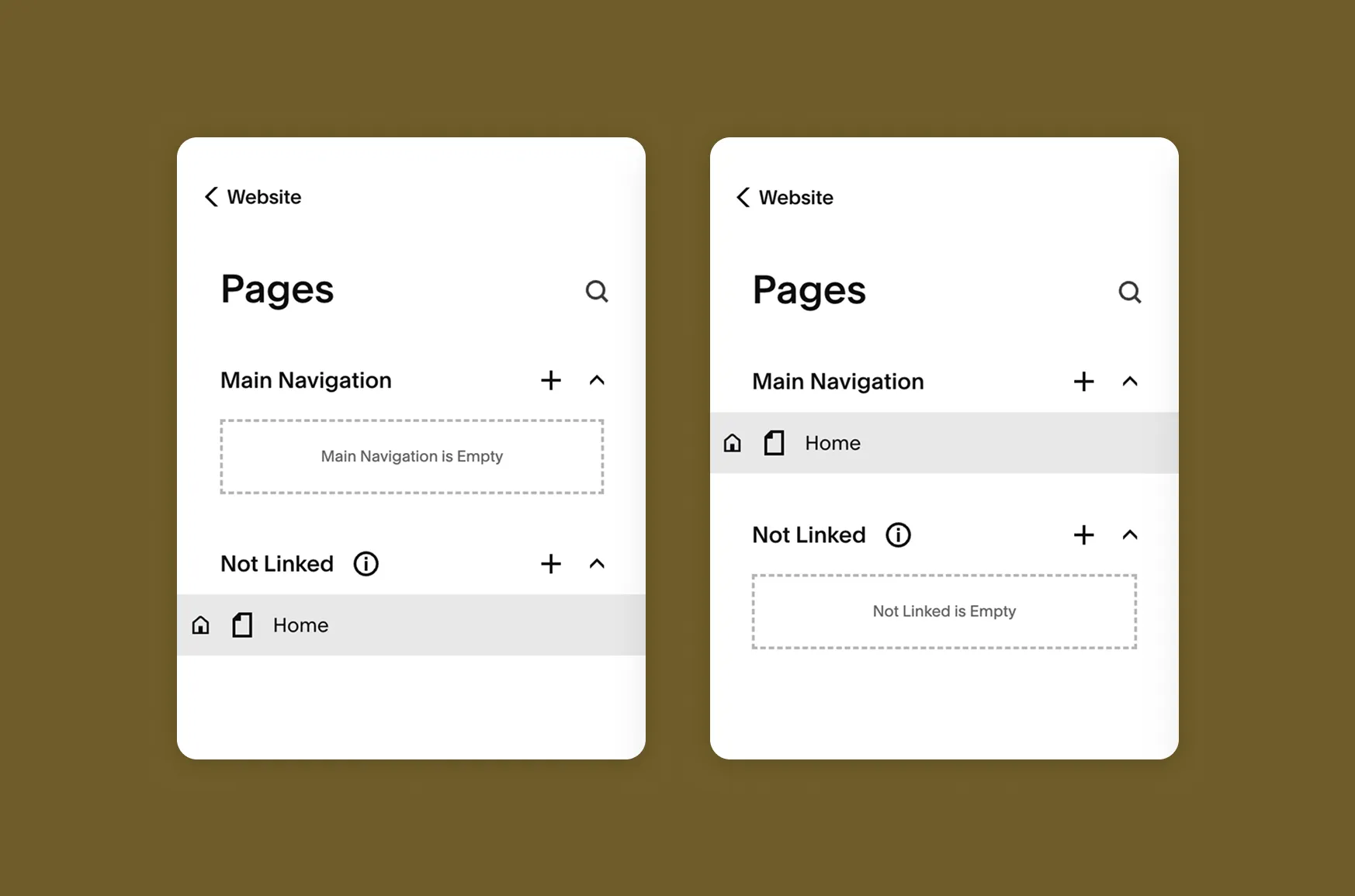
In your Squarespace dashboard, go to:
Website → Pages
This is where you’ll see two main sections: Main Navigation and Not Linked.
- Main Navigation: pages that appear in your header menu
- Not Linked: pages that exist on your site but aren’t linked anywhere in the menu (useful for landing pages you’re linking to directly rather than through the header)
For beginners: The order pages appear in this panel is the order they’ll appear in your actual navigation. Drag and drop to rearrange.
Add a page to your navigation
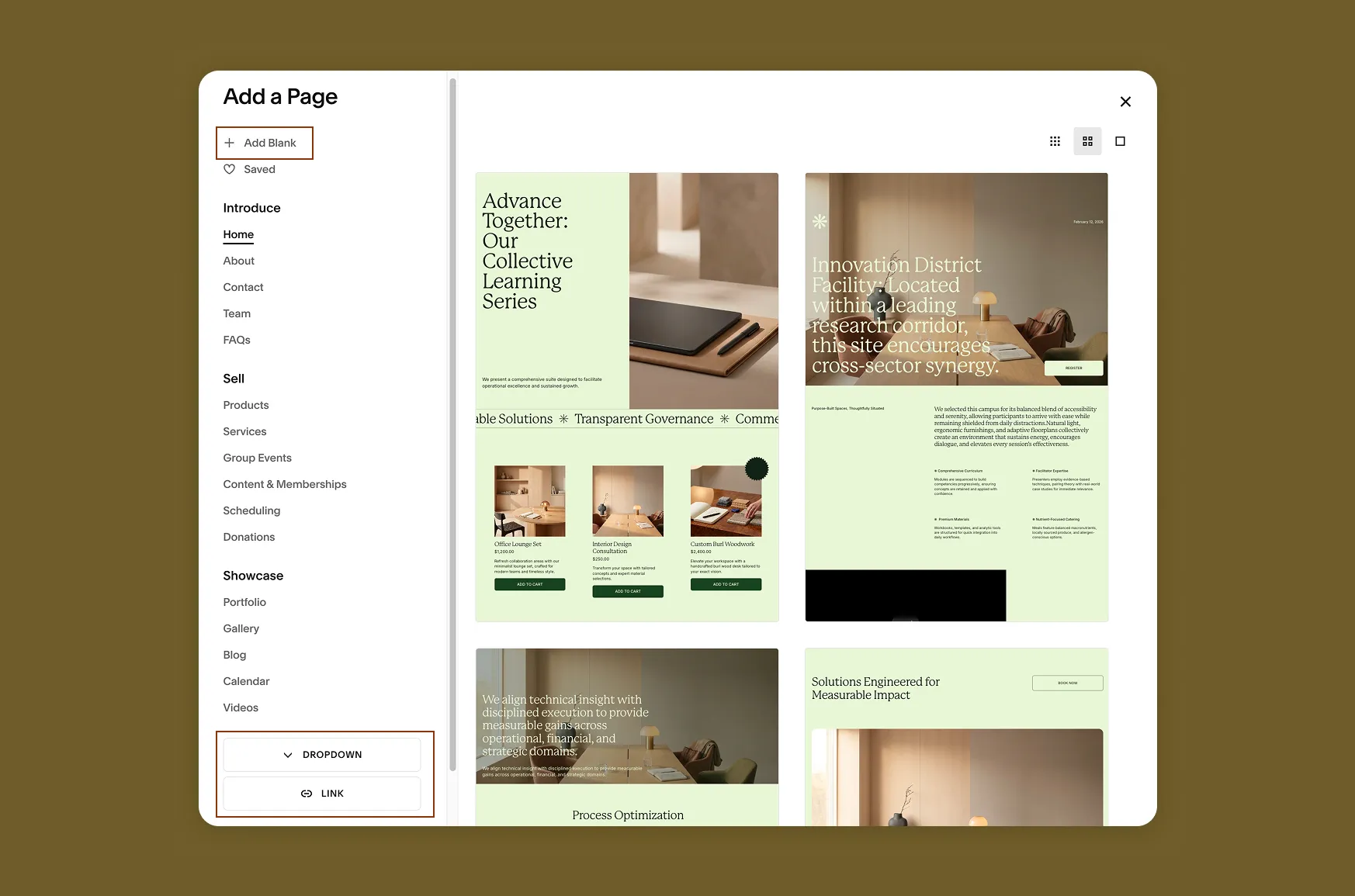
Click the + icon next to Main Navigation, then choose what you want to add:
- A blank page, or one of Squarespace’s pre-built layouts
- Link: a link to an external URL
- Dropdown: found under “More” in the pop-up menu, this creates a group of pages that appear together in a dropdown
Once added, the page appears in your navigation right away.
Create a dropdown menu
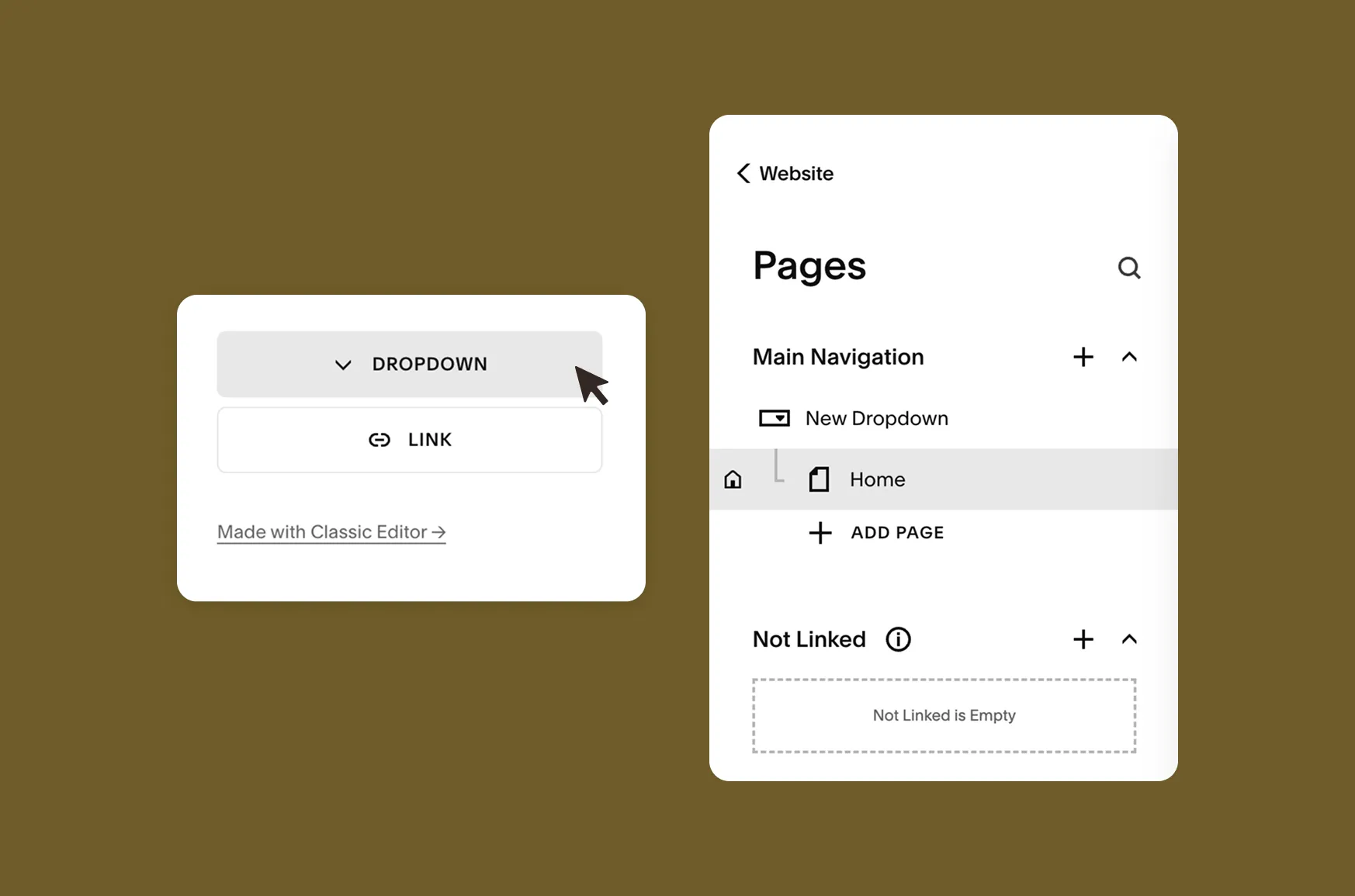
If you have several related pages, grouping them under one dropdown keeps your navigation clean instead of cluttered with individual links.
- Click the + icon next to Main Navigation
- Scroll to More and select Dropdown
- Name the dropdown. This is the label visitors will see (for example, “Services”)
- Drag existing pages into the dropdown, or add new pages directly inside it
💡 Good to know: Clicking a dropdown title doesn’t take visitors anywhere. It only opens the dropdown. If you want the dropdown label itself to link somewhere, you’ll need a page with that same content, or accept that it functions as a category header rather than a clickable link. Squarespace also only supports one level of nesting, so you can’t build a dropdown inside a dropdown.
Check your mobile menu
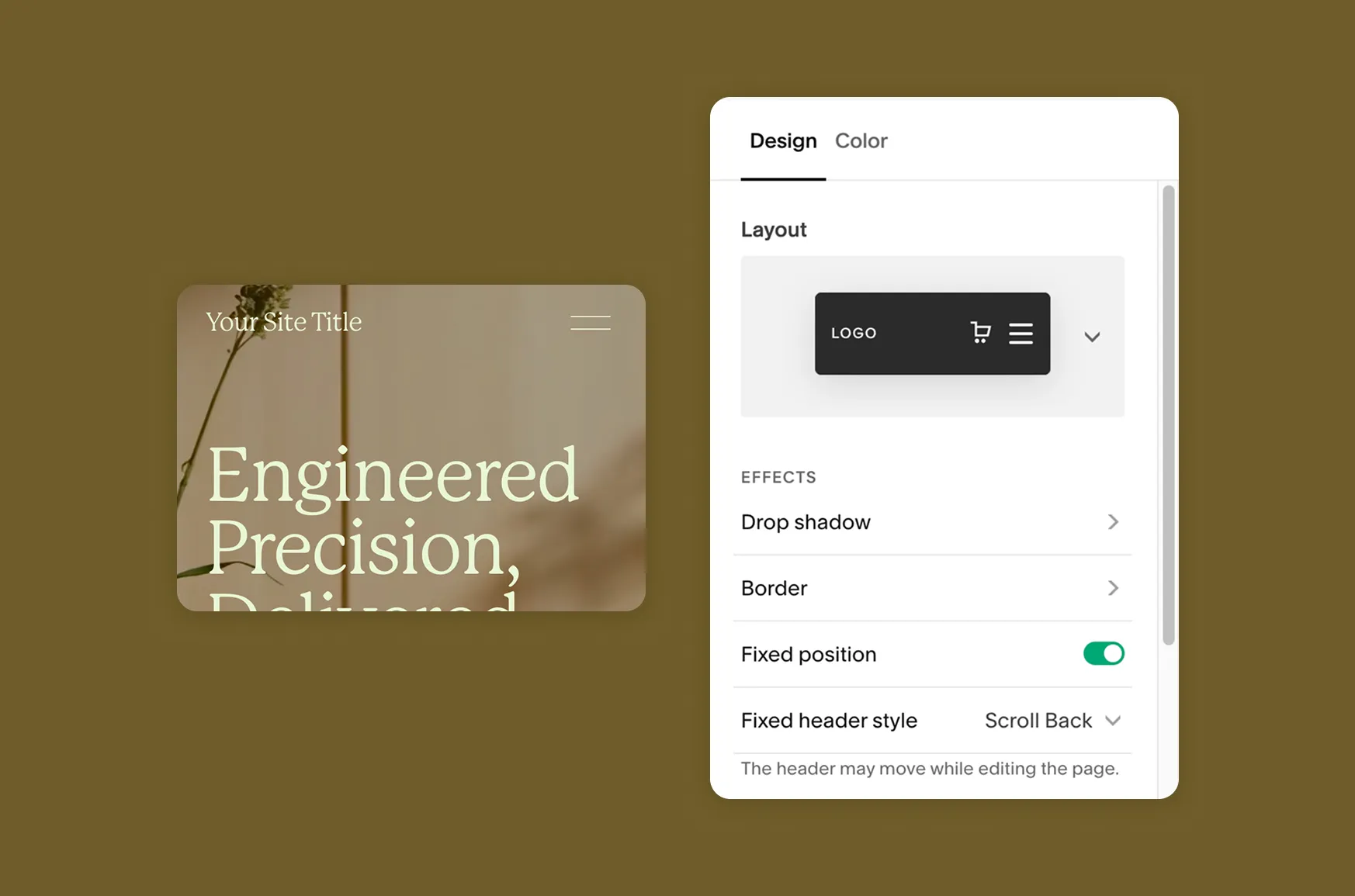
Your navigation might look perfect on desktop and still need adjusting on mobile, since Squarespace collapses your main navigation into a hamburger menu on smaller screens.
To check it:
- Preview your site and switch to the mobile view
- Open the mobile menu and tap through each item
- Confirm dropdowns expand properly. On mobile, they appear as a nested accordion rather than a hover menu, so the experience is slightly different from desktop
Style your navigation
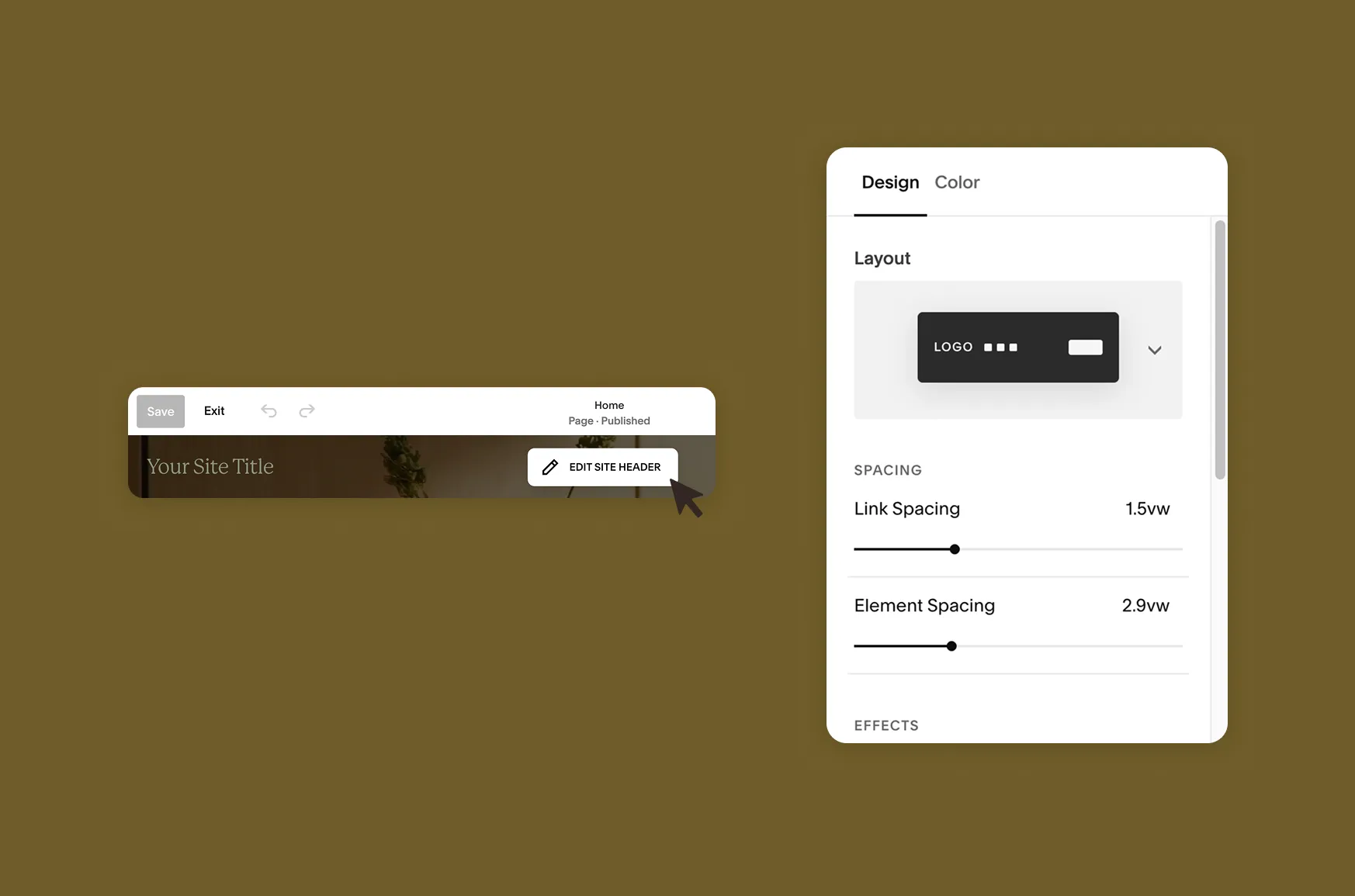
Once your structure is set, click the header and select Edit Site Header depending on your template) to adjust:
- Navigation layout
- Font and text size
- Spacing between links
- Colour and hover states
- Dropdown icon style, if you’re using one
Keep navigation styling simple. This is one place on your site where visitors expect consistency, not creativity. A menu that behaves unpredictably is more frustrating than one that looks a little plain.
👉 Not sure which fonts or colours to use in your navigation?
Take a look at our 6 font pairing tips for a standout Squarespace website and 6 colour palettes for a standout Squarespace website.
Before you finish
Once your navigation is built, take a few minutes to test it properly.
- Click every link. Broken or placeholder links are easy to miss until a visitor finds them for you.
- Check dropdown behaviour on mobile. Confirm they expand and collapse as expected.
- Limit your main navigation. Five to seven items is usually the sweet spot. More than that, and visitors start skimming instead of reading.
- Make sure your most important page is easy to find. If the goal of your site is to get people to contact you or book a call, that link shouldn’t be buried in a dropdown.
Troubleshooting
- My dropdown title isn’t clickable. This is expected behaviour. Dropdown titles open the dropdown but don’t link anywhere on their own.
- A page isn’t showing up in my navigation. Check whether it’s sitting in Not Linked instead of Main Navigation.
- My dropdown looks different on mobile than desktop. That’s normal. Desktop dropdowns appear on hover, while mobile shows them as an expandable accordion.
- I can’t find a Footer Navigation section. Squarespace doesn’t have a dedicated footer navigation panel. Footer links are typically added as a text or link block directly in your footer section instead.
Good navigation is invisible
The best navigation menus don’t get noticed. They just work. Visitors find what they need without thinking about how they got there.
Start with a simple structure, group related pages thoughtfully, and always test on mobile before calling it done. If you’d rather start with a navigation structure that’s already been planned out, our Squarespace templates come with a considered page and menu structure built in, so you’re not starting from a blank Pages panel.