Creating a portfolio page in Squarespace 7.1 starts with deciding how visitors should explore your work. You can build a dedicated Portfolio page with individual project pages, or add a Portfolio section to an existing page for a single-page presentation.
This guide explains both approaches and how to prepare your content before you start.

What should a professional portfolio page include?
Before opening the editor, decide what each entry will say. Visitors compare entries quickly, so every entry needs the same kind of information in the same order.
For most business portfolios, a useful entry has:
- Name. The company, client or project, spelled the way its owner spells it.
- A short description. One or two plain sentences on what it does or what you did. This is the part visitors actually read.
- Location, where it helps the reader place the entry.
- A category. Industry, sector, service type or stage, whichever helps visitors sort entries mentally.
- Supporting detail, only if you will keep it up to date: a year, a link to the company’s website, a milestone.
- An image or logo, if you have one and the right to use it.
Here is a fictional example of an entry, to show the level of detail:
Lumen Therapeutics · Boston, USA · Oncology
Developing a targeted treatment for a rare blood cancer. Currently in Phase 1 trials.
(Lumen Therapeutics is invented for this tutorial. It is not a real company.)
Consistency matters more than the amount of information. Entries that follow the same format look considered and professional. Entries with different amounts of information and inconsistent formatting can make the page feel unfinished.
If you are naming other organizations, make sure you have permission to show their name, logo and any details. That is especially true for investments, client work under agreement, and anything not yet announced. Your own legal or compliance adviser is the right person to ask.
Plan your portfolio page before building it
Twenty minutes of planning saves a lot of rearranging later.
- Decide what the page is for. A portfolio can show range, credibility, specialization or track record. Pick the main job. A page meant to show investment focus is organized differently from one meant to show the variety of client work.
- Choose what to feature. You do not have to show everything. A smaller set of entries you can describe well is usually more convincing than a long list of thin ones.
- Group the entries. Look for a natural grouping: sector, service, stage, region or year. Pick one grouping and use it consistently. If you cannot name your categories in a few words each, they are probably not clear enough yet.
- Write the entries first. Put the text for every entry in one document, with the same four or five fields for each. Writing in one place makes inconsistencies obvious before they reach the website. If your page is part of a larger site, our guide to what to write on a biotech VC website covers the portfolio page’s copy in more detail.
- Gather the images. Collect logos or images at similar sizes and check you have the rights to use each one.
Option 1: Portfolio Page (Dedicated Collection with Sub-Pages)
Use this method if each project requires its own dedicated detail page (case study, image gallery, or detailed description). Clicking a project item automatically opens its sub-page.
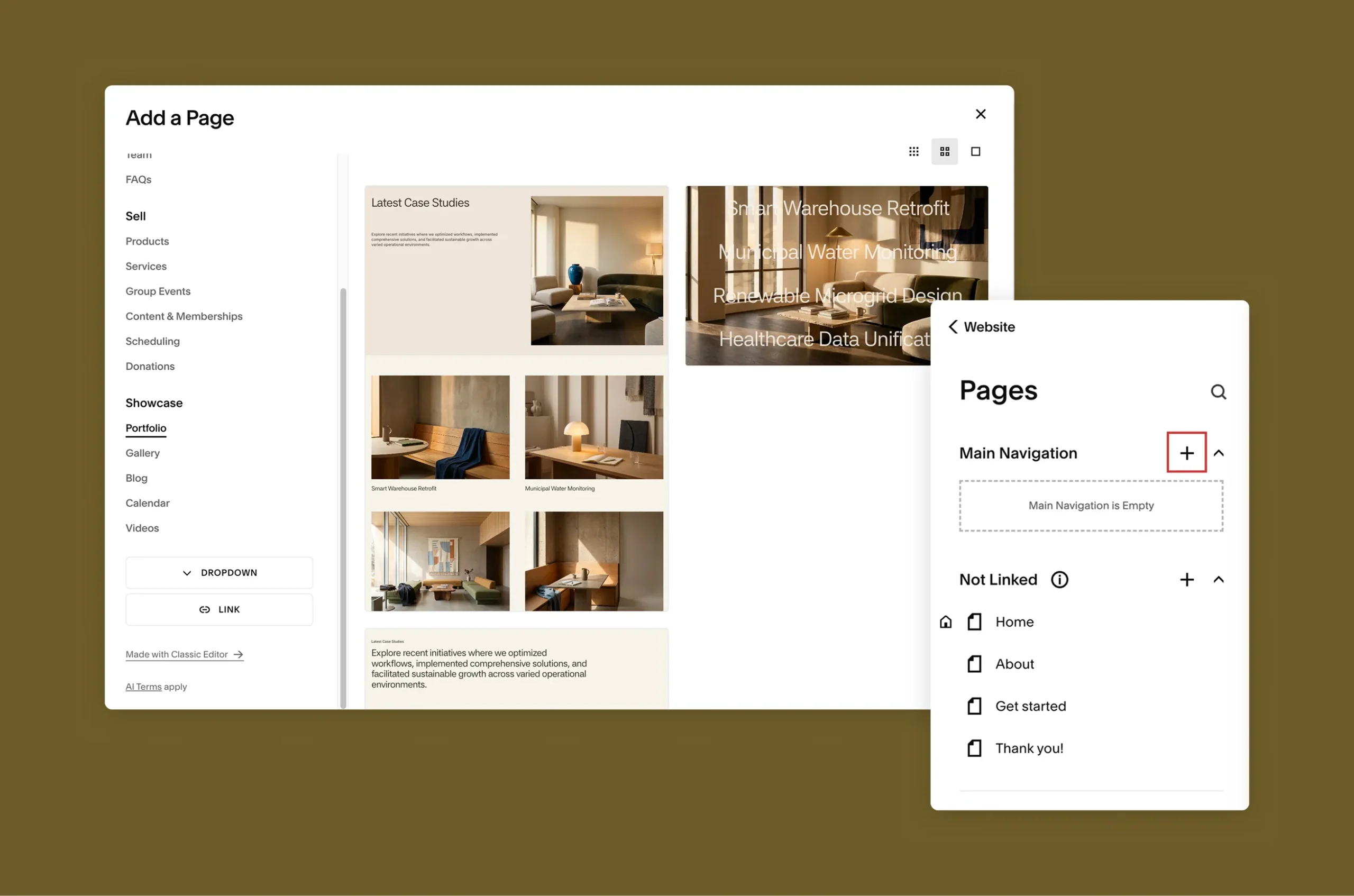
Step 1. Add a New Portfolio Page
From your main menu, go to Pages, click the + icon (under Main Navigation or Not Linked), and select Portfolio.

Step 2. Select a Layout Style
Choose your preferred main page layout style from the list (e.g., Grid: Simple, Grid: Overlay, Hover: Background). You can change the layout later.
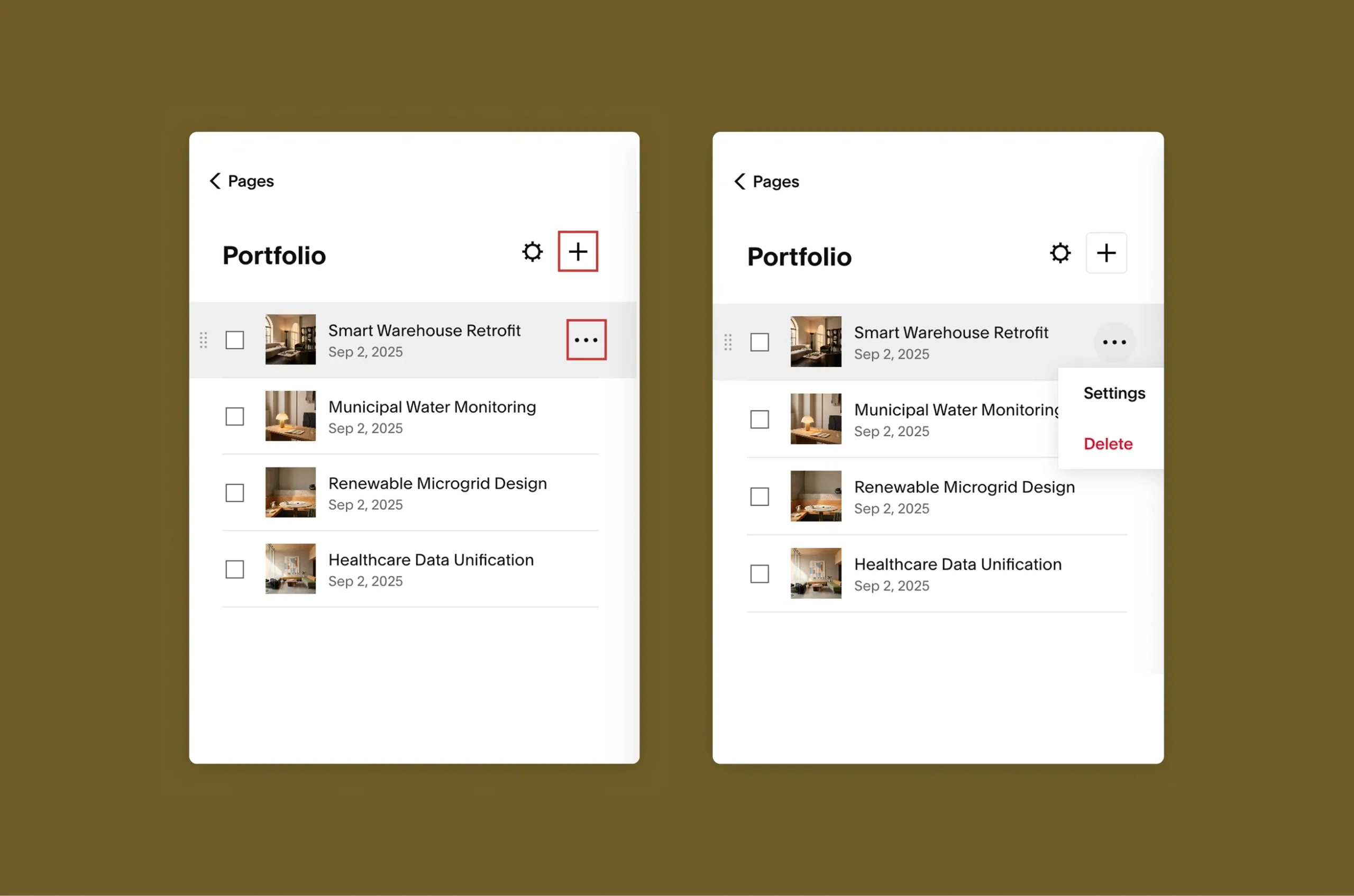
Step 3. Manage & Add Sub-Pages
Hover over the Portfolio sub-pages in your sidebar and click the ··· icon to delete demo sub-pages, or click the + icon inside the panel to add a new project sub-page.
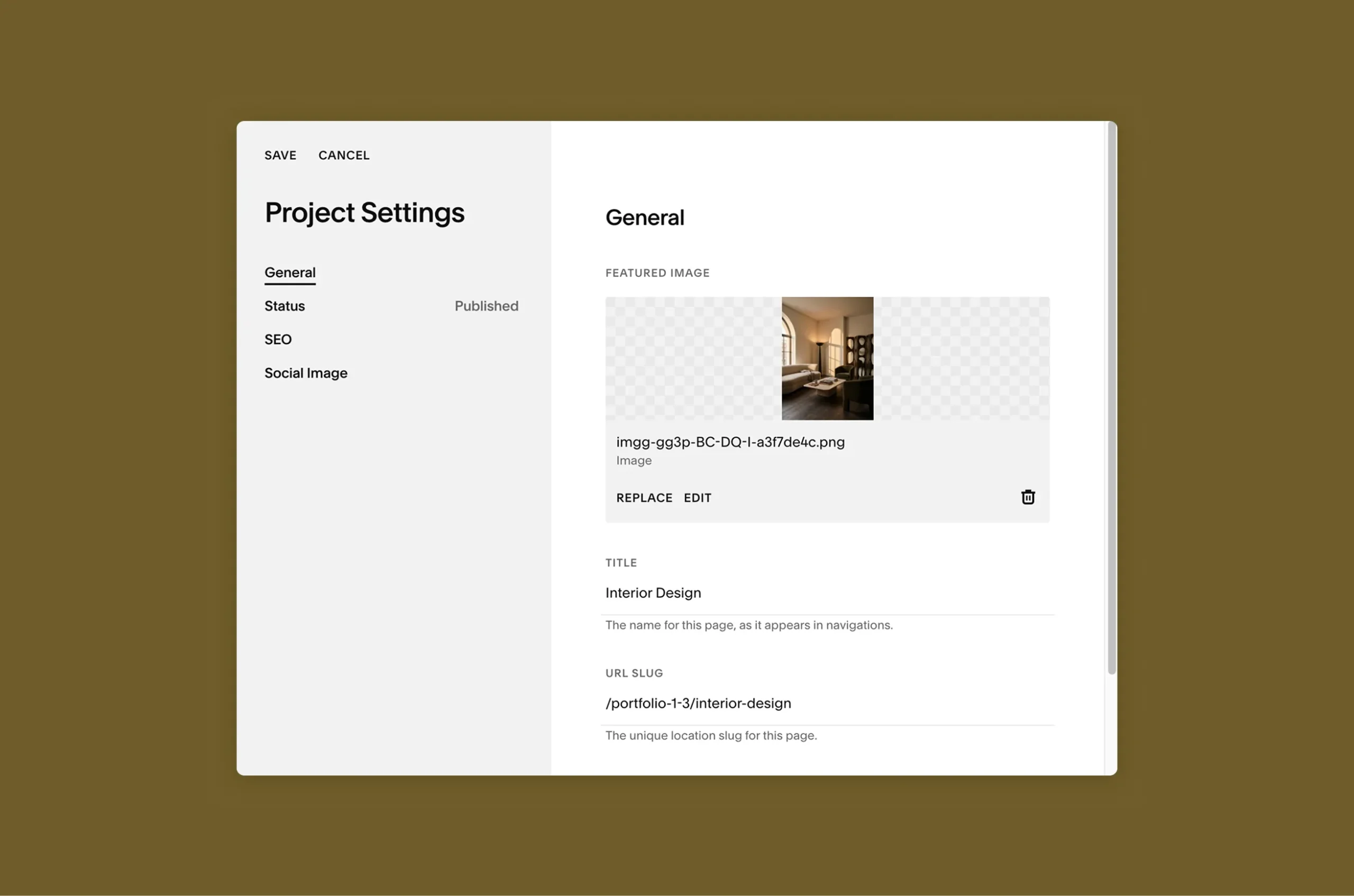
Step 4. Customize Project Settings & Save
Click the ··· icon on any individual project item to change its thumbnail image, title, excerpt, and URL slug, then click Save.
Option 2: Portfolio Section (All-in-One Single Page)
Use this method if you want to showcase images or work on an existing page without creating separate sub-pages for every project.
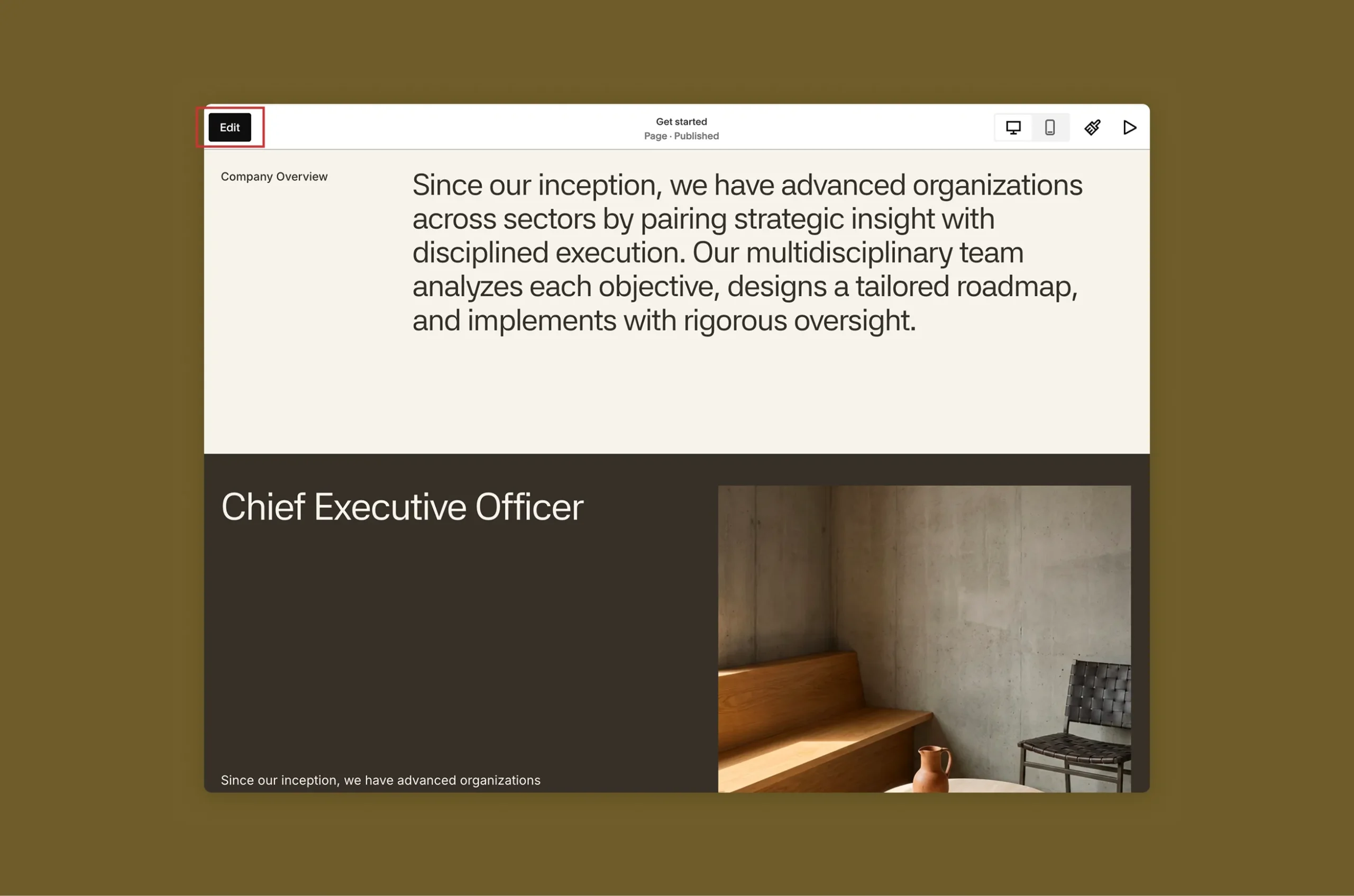
Step 1. Edit Your Destination Page
Go to Pages, open the page where you want to add the portfolio section, and click Edit in the top-left corner.
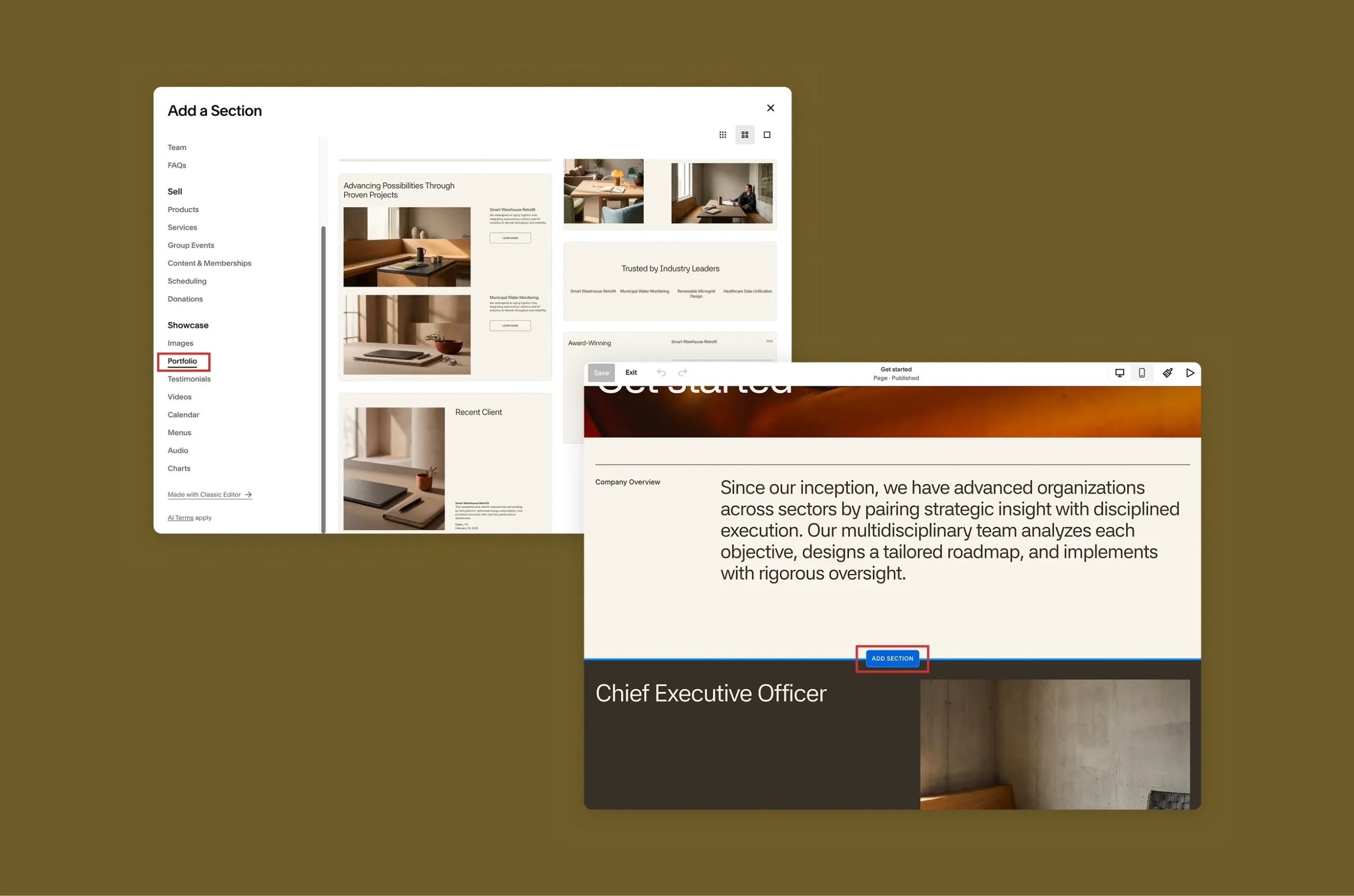
Step 2. Insert a Portfolio Section
Click Add Section where you want the gallery to sit, choose Portfolio from the left menu, and pick a layout style.
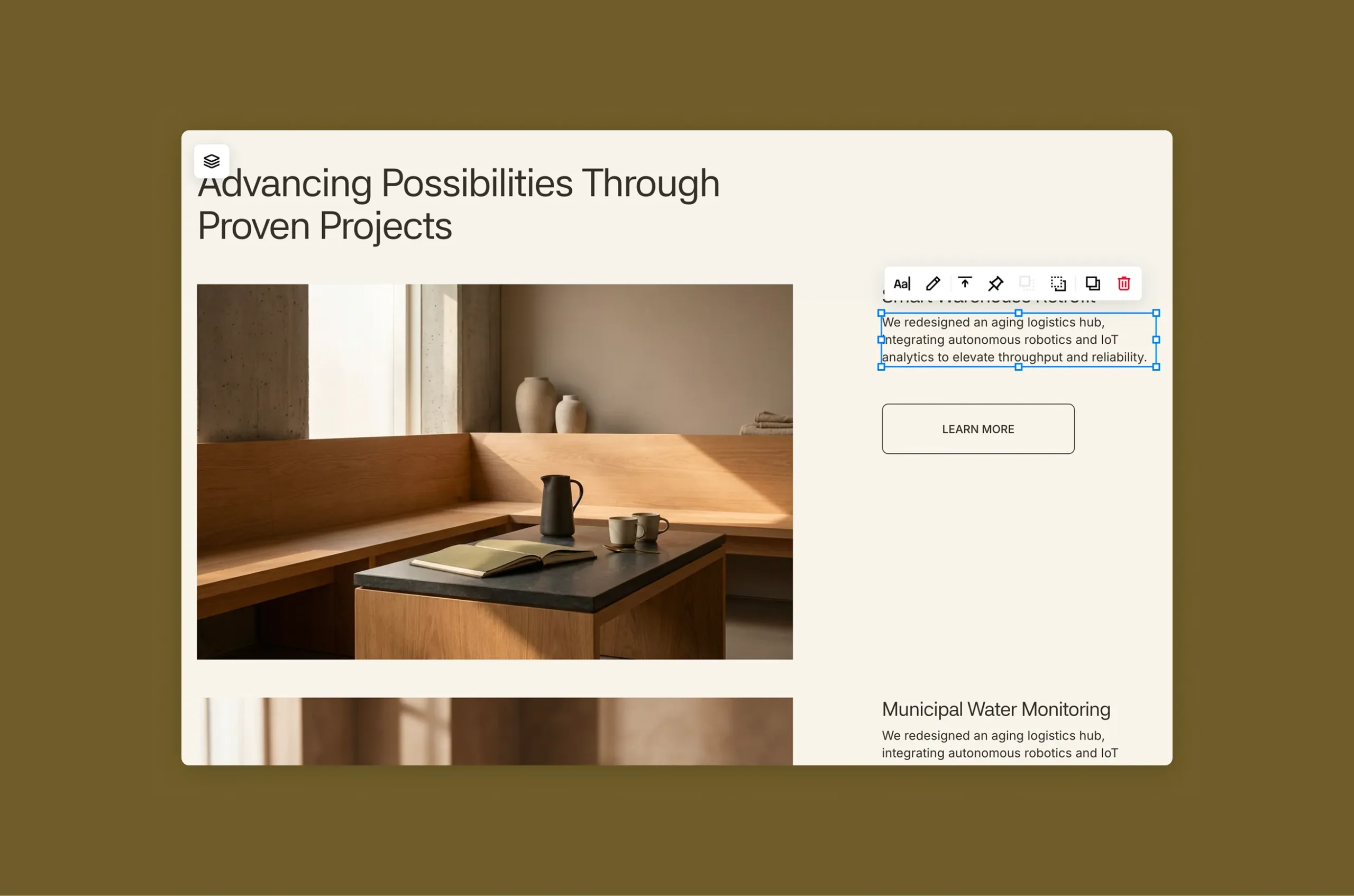
Step 3. Upload Content & Save
Hover over the section, click Edit Content, use the Items tab to swap placeholder images with your own work, then click Save in the top-left corner.
Portfolio Page Layout Options
- Grid: Simple shows featured images in a grid with the title below.
- Grid: Overlay shows featured images in a grid with the title over the image.
- Hover: Background, Hover: Fixed and Hover: Follow Cursor display a list of project titles, with the featured image appearing as visitors move over each title.
Common portfolio page mistakes to avoid
- Inconsistent descriptions. One entry with three sentences and another with a single phrase.
- Too much information. If an entry needs a page of explanation, it likely needs its own page (Option 1) or a link.
- Unclear categories. Labels that overlap, or that only mean something inside your organization.
- Poor image choices. Low-resolution logos, mismatched styles or stock photos that say nothing.
- Inconsistent spacing. Entries that sit at slightly different distances look careless.
- No hierarchy. Everything the same size, so the eye has nowhere to start.
- Outdated information. Companies that have closed, renamed or changed what they do. Review the page on a schedule.
- Placeholder content left in. Demo names, sample text and stock images need to be replaced before you publish.
Final portfolio page checklist
Before you publish, check that:
- The page has one clear purpose, stated in its introduction.
- Every entry uses the same fields in the same order.
- Names, locations and descriptions are accurate and approved for public use.
- Categories are clear and used consistently.
- Images are consistent in size and style, and you have the right to use them.
- Spacing is the same between all entries.
- Headings, entry names and descriptions have a clear visual hierarchy.
- You have checked the page in Squarespace’s mobile view and on a real phone.
- Links and buttons work.
- Project status is Published for every Option 1 project you want visible.
- You have a date or a routine for reviewing the page.

Start with the structure, then make it yours
Creating a portfolio page in Squarespace 7.1 comes down to a few decisions: what each entry says, whether entries need their own pages, and how consistently you apply the structure. Plan the entries, pick Option 1 or 2, keep every entry in the same format, and check the result on mobile.
If you would rather begin with a considered structure, explore the Nucleus Squarespace template →